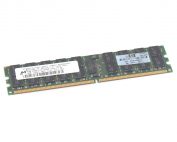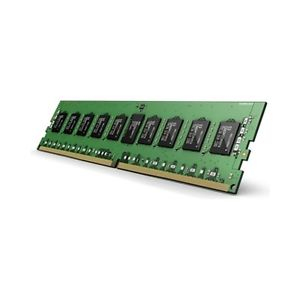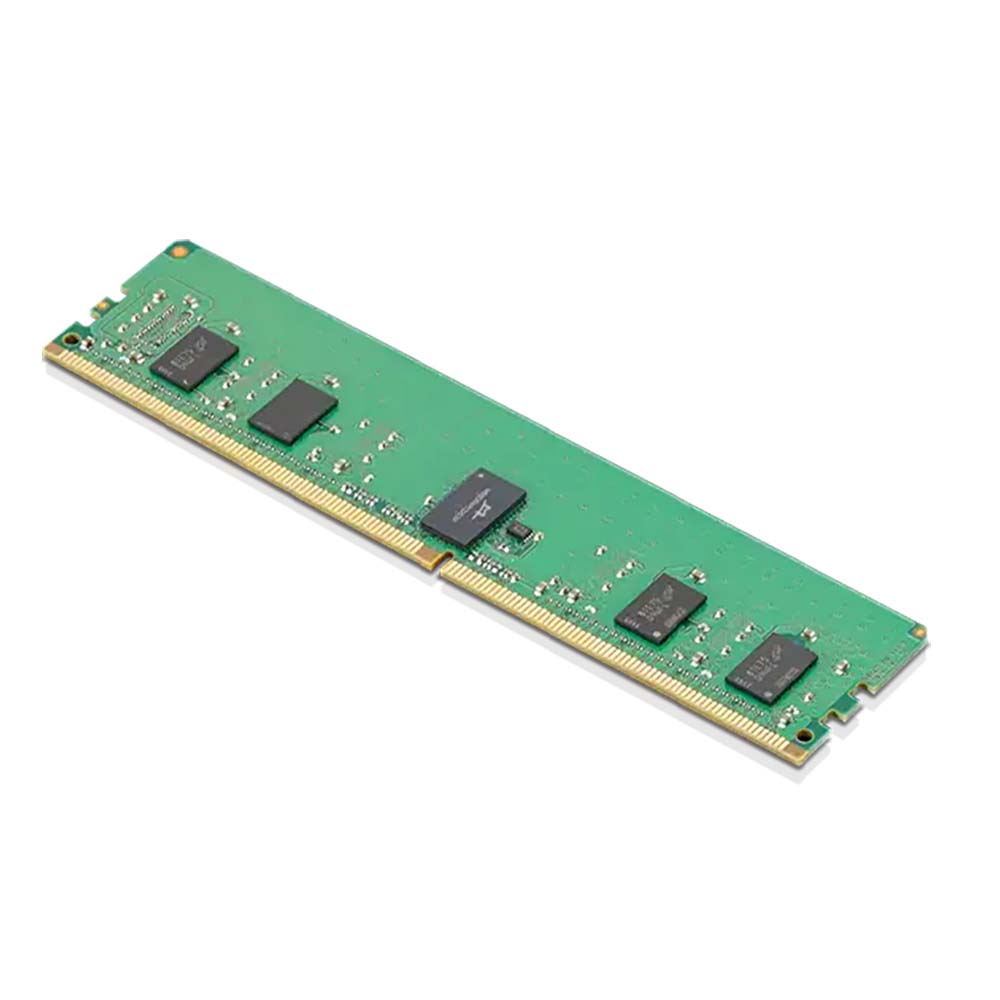
Memory is one of the easiest pc parts to install into a PC but at the same time, it’s not necessarily the easiest to buy if you are unsure of what you are looking for. There are a few things to consider when buying memory and we will go through them today in this knowledgebase.
PC or Laptop
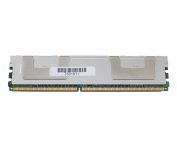
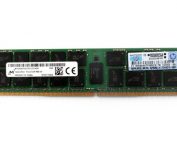
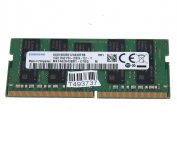
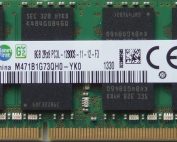
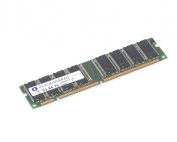
First things first let’s start with the obvious are you buying for a PC or laptop? Although they operate in the same way, you won’t be able to use one in the other and vice versa. So, the best way to tell the difference is to look and see how many pins the RAM has. This is because laptop RAM only has 204 pins whilst desktop will have 288 pins. They also look slightly different too as laptop RAM will tend to be a bit smaller than desktop RAM.
Things to consider
How many Gigabytes?
Now, this factor depends on what you use your PC or Laptop for because you don’t want to pay for a massive amount and then not use it. So, a good place to start is 16Gb as that will run most things at a smooth rate if you’re a casual gamer or just use your device for everyday uses. Now if you’re a content creator that either makes games or videos then you may need a bit more as it will help with much bigger tasks when it comes to doing things like rendering you may need 32Gb or 64Gb it depends on what you plan on doing.
How many sticks?
Well, if you are using a desktop then you’re going to want to check your motherboard to see how many slots it has as some only support 2 sticks and others support 4 so that will help to know. Now if you are using a laptop then they will just support 2 sticks. When buying RAM, they usually come in groups of two as you should buy RAM sticks of the same size. So, in your desktop, if you have 32Gb RAM it should be two sticks of 16Gb and it shouldn’t be two sticks 8Gb with one 16Gb.
What speed?
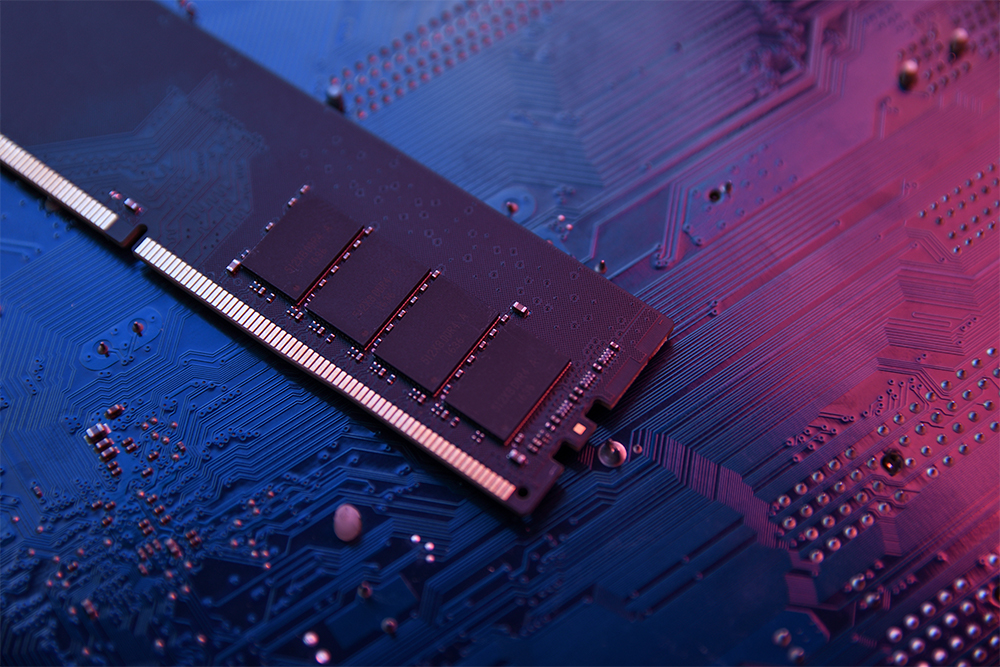
When deciding what speed, you will want to look at its data rate. For example on current DDR4 RAM sticks, you’ll see data rates of 1600MHz and 3200MHz. You’ll probably have guessed that the faster the data rate the faster the RAM. Now their other details can be looked at when it comes to buying RAM but that will be on a separate guide as there is quite a lot to be talked about, but for this page, this information can get you started.
What is DDR4?
Now when buying RAM you might see DDR4 a few times and that is currently the latest generation of RAM and will probably be the only one you’ll be buying unless you are trying to repair an old machine. All modern motherboards will only be compatible with DDR4 whereas older motherboards will be compatible with older versions like DDR2. Now if you are looking to buy older RAM check out how many pins it has as they have:
DDR4 – 288, DDR3 – 204, DDR2 – 240, DDR1 – 184
If you need more information about our different RAM types then go to our knowledge base about them here
To RGB or not to RGB?
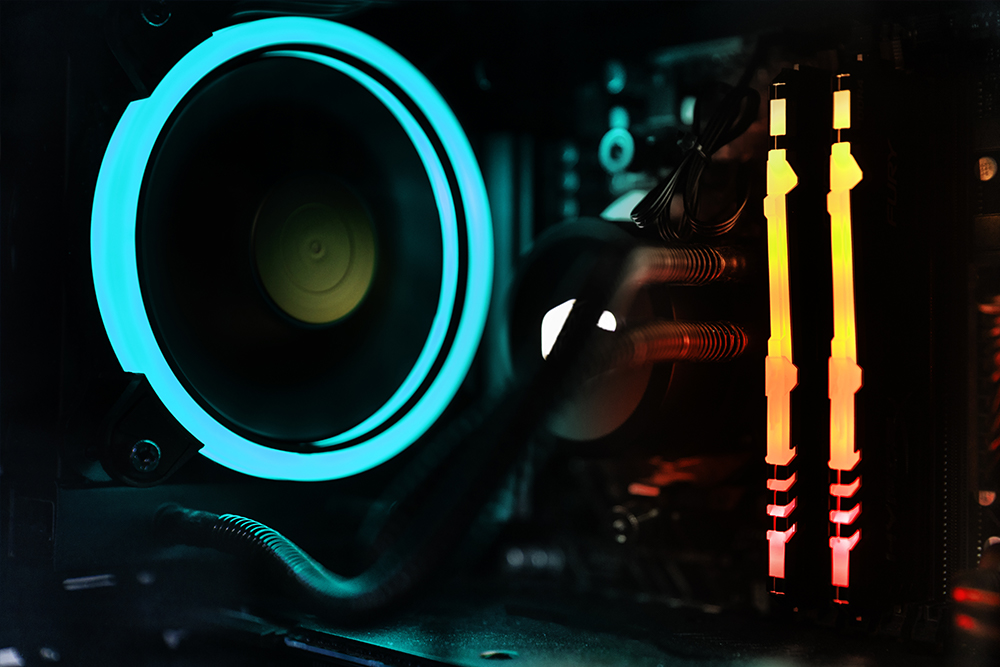
Now whether you want RGB is completely up to you. It doesn’t add or take away anything to do with its performance it just adds light if you are wanting that aesthetic.
How to install
Now that you have the tips for buying your memory you’ll probably want to get right to installing it into your PC. Here is a quick step by step to help you install your RAM it’s as easy as 1-2-3.
- Ensuring that your PC is off, locate where your old RAM is on your motherboard, to remove them you should see clips on either side. Press them to release the RAM and then remove it from the board.
- Get your new RAM and line it up. Make sure that the gap on your stick is lined up with the gap on your board so you don’t try and force the connectors in the wrong way round.
- Once lined up insert the RAM but won’t apply too much pressure, move the clips on both sides back into place which will then lock your RAM back into place.
Now that you have all the tips you need to get you started here is a link to the RAM we have in stock to get started on your journey to getting new RAM.