Due to recent events over the past year more and more companies are taking steps to get their staff to work from home, with some companies even making it a more permanent option for staff. Although you’ll be given your equipment and some training it can still be daunting when trying to set up at home especially if it’s your first time. This article is going to go through some tips and tricks to try and help you get yourself set up.
Docking Station
Amongst all of the equipment that you will have been given, a docking station may be amongst them. Depending on the type you have been given they can seem quite intimidating in their design with many inputs to choose from. But they are surprisingly quite simplistic in design, this step by step is going to explain to you how to get your station set up:
- The first thing you’re going to want to do is to ensure that you have saved whatever documents you are in and that you have put the laptop in sleep mode and turned it off, once turned off close your laptop. (Even though most docking stations can connect whilst the laptop is on, it is still safer to practise saving your work and shutting down the laptop beforehand.)
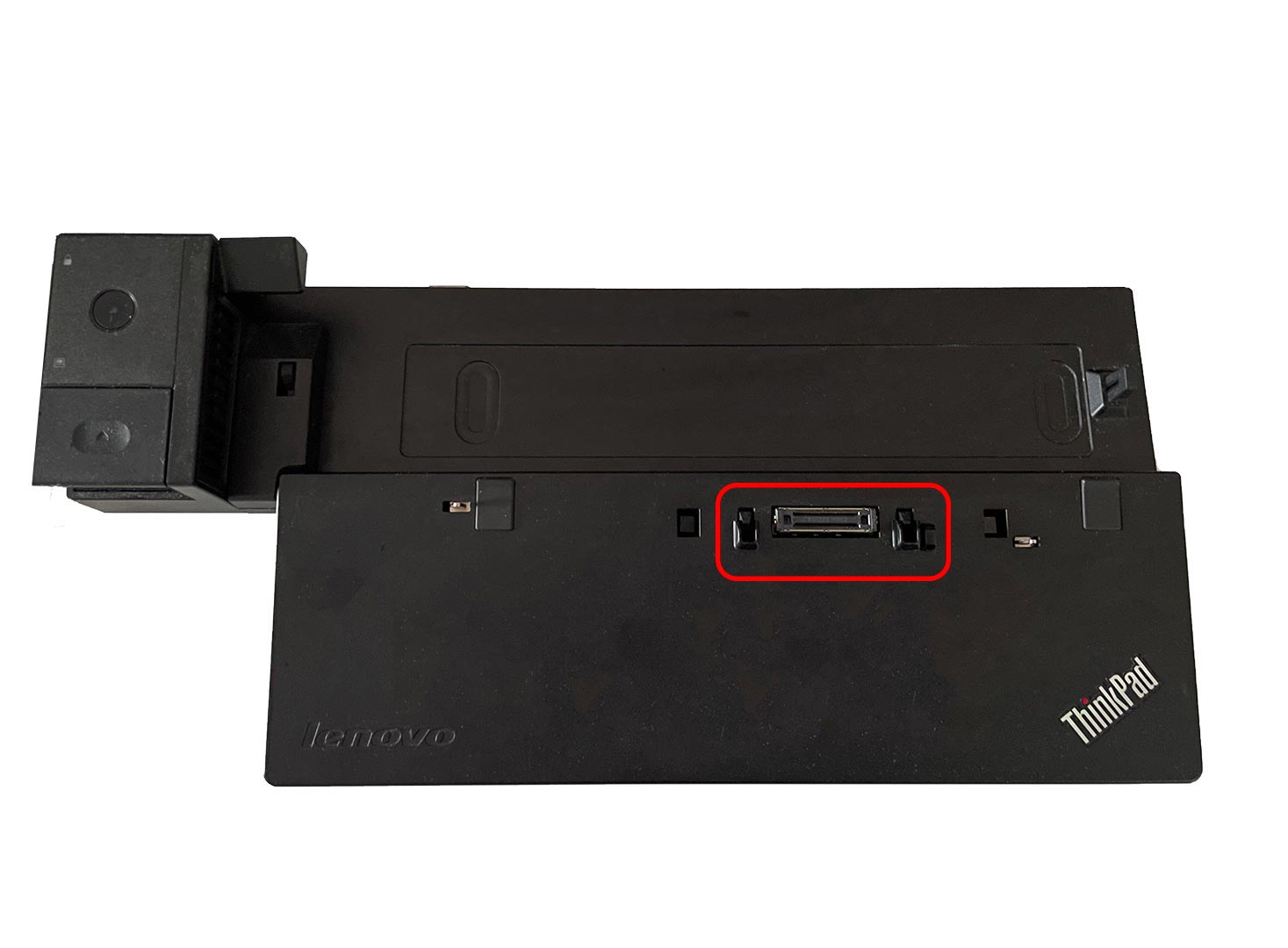
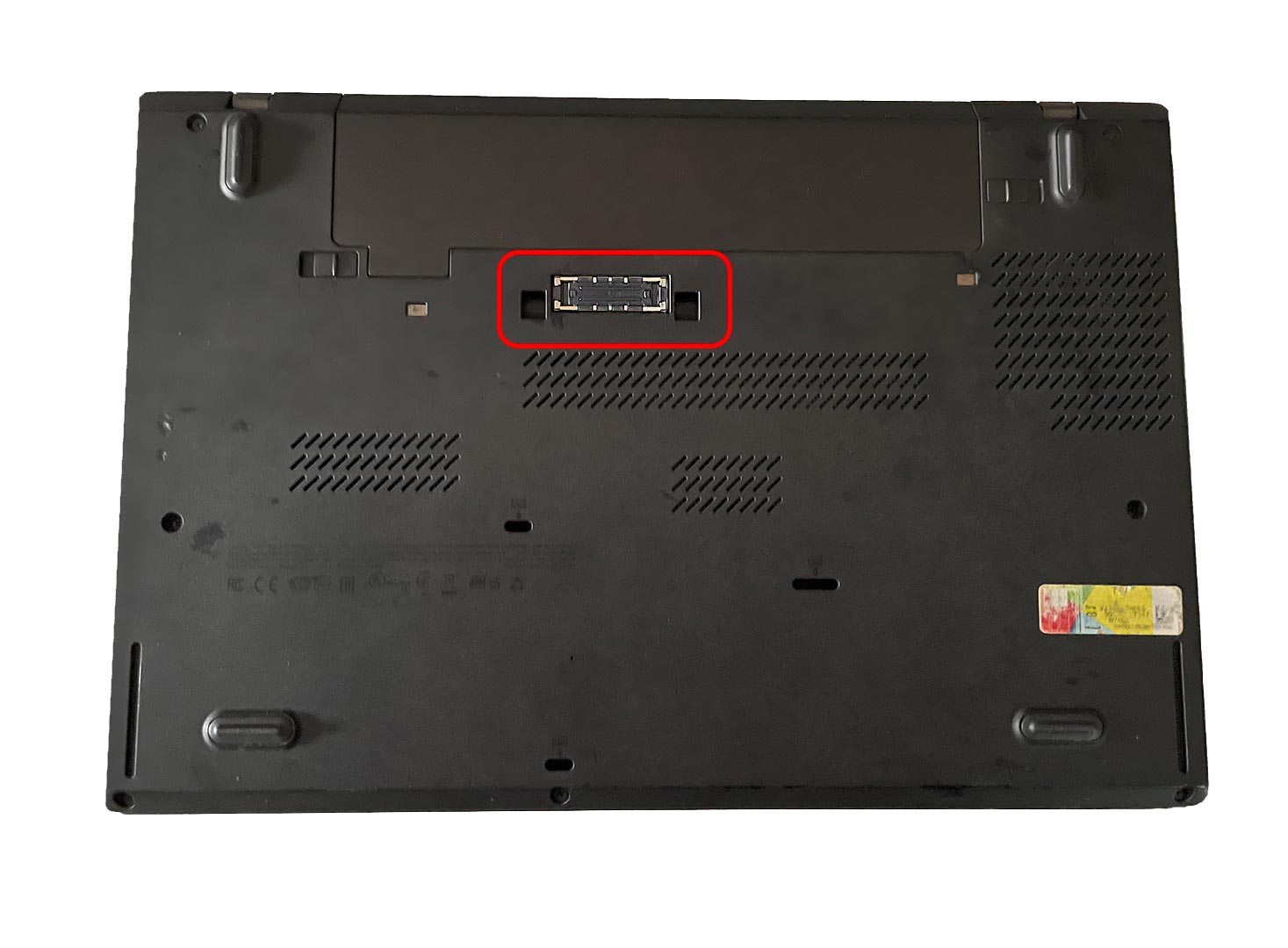
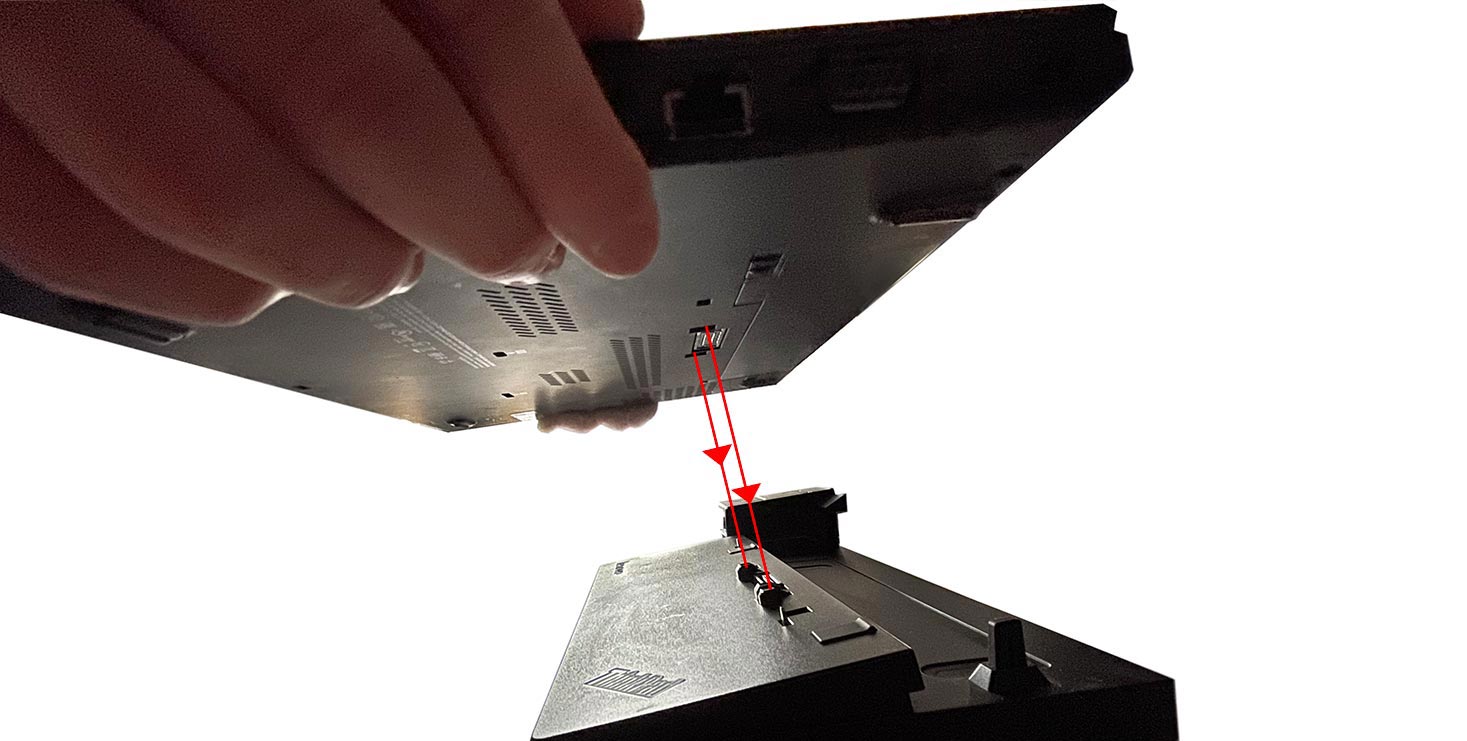
- Now that your laptop is closed and shut down, the next thing you’ll want to do is connect the laptop to the docking station. Now depending on what laptop or docking station you have it can be slightly different but the same in principle. When putting the laptop on the docking station hover it over whilst lining it up with the pegs on the docking station. Once you have put the laptop down you’ll know that you have done it right as it will have made a clicking sound. Once connected to the docking stations it’s time to start connecting the necessary cables. Now if your docking station requires a cable to be connected from the laptop to the docker then now is the best time to connect it.
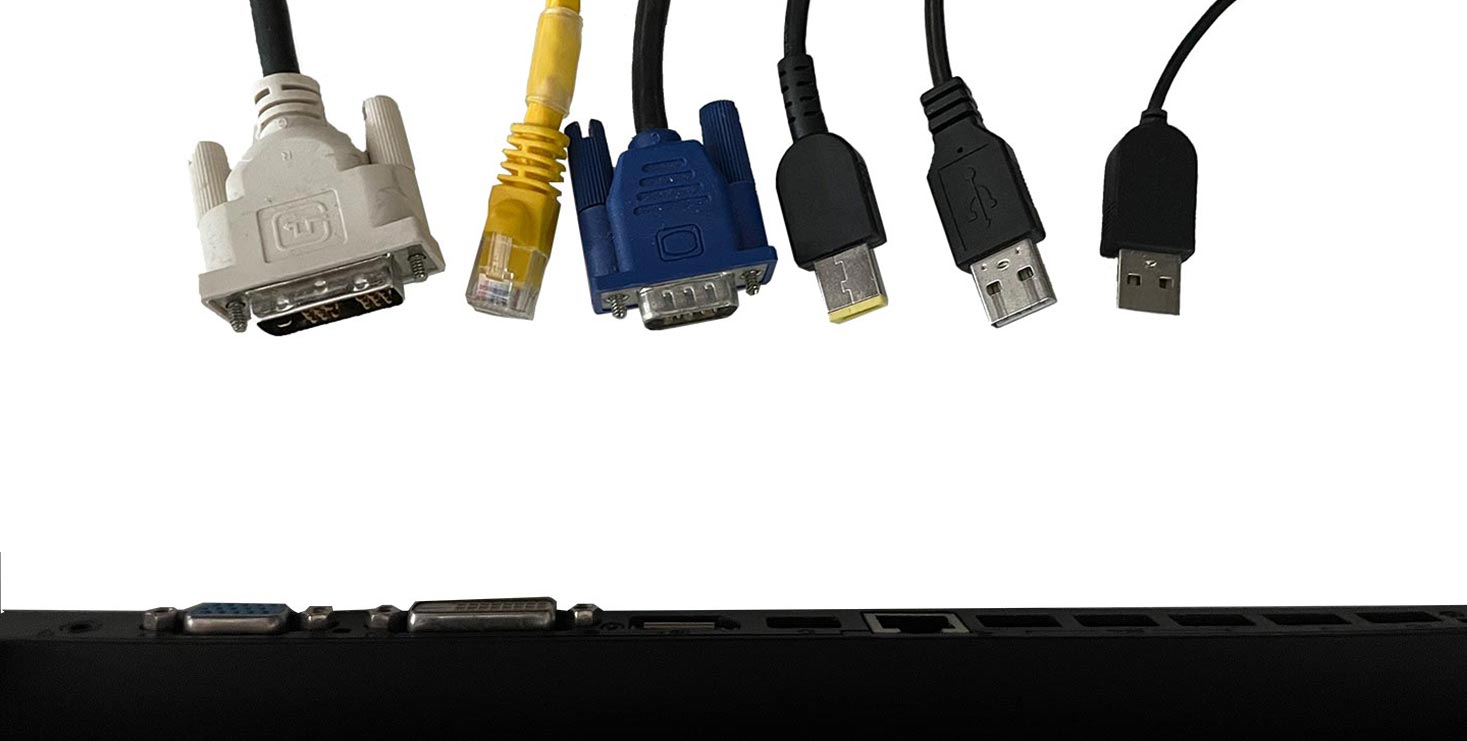
- The first cables you should set up will be the monitor cables as they can tend to be the most difficult. Providing you have set up your monitors you should know what connections you will need. Then I would advise connecting any USB connections such as your keyboard and mouse. To then lastly plug in your main power cable.
Now that you are all plugged in you should be ready to go, but before you get started on working just ensure you’ve done these last few things:
- Connected to your WIFI or plugged in an ethernet cable
- Installed any new drivers for the devices connected
- Opened any chat apps such as Skype, Teams or Outlook to make sure your team know you are online.
Monitor(s)
Setting up a monitor isn’t as scary as it sounds, as most of the time the monitor is put together for you so at most you’ll only have to worry about the cables. But just in case here is a guide for you can set up generic monitors at home:
- Firstly you will have to take the monitor out of whatever box or packaging it is in. If you are monitor is attached to its stand already then ignore this next step.
- If you, unfortunately, do have to connect your stand to your monitor then the best advice is that you follow the instructions provided or look online for a PDF of the instructions by searching the model of the monitor. The only reason that we don’t tell you how to attach them is that there are so many different monitors we wouldn’t be able to direct you properly.
- Now that your monitor is standing and on a clear part of your desk or workstation, you’re now going to want to plug in the cables. First thing is to check what video connections are needed by checking the back of your docking station (or laptop) and monitor to try and find out what cables you will need. For more advice on video, cables check here. Once you know what cable you need then plug them into their ports on both devices. The last cable you will need to plug in is the power cable. Simply plug the power cable into the monitor and the mains and it should begin to power up into standby mode.
- Now that your monitor(s) are set up and plugged into your PC, providing everything has been done correctly you will be good to go.
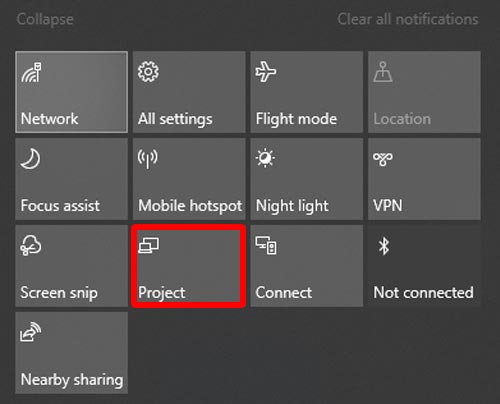
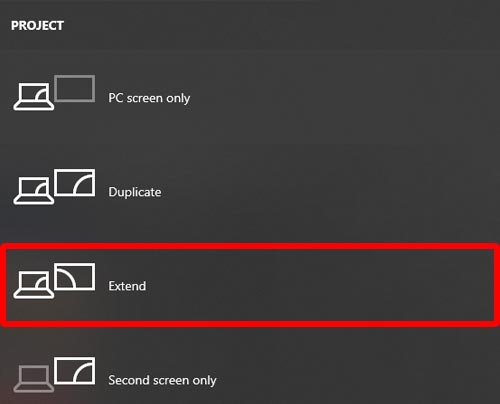
- If you have more than one monitor, this step is for you. Once you have logged on to your pc navigate to the bottom right of your taskbar and select the notification tab. Once there a list of options will show up on your screen. Select project and then select extend to have your monitors working independently.