

Setting up a new Bluetooth device can sometimes be difficult or complicated but here is a quick comprehensive guide on how to set up Bluetooth on different devices.
IOS
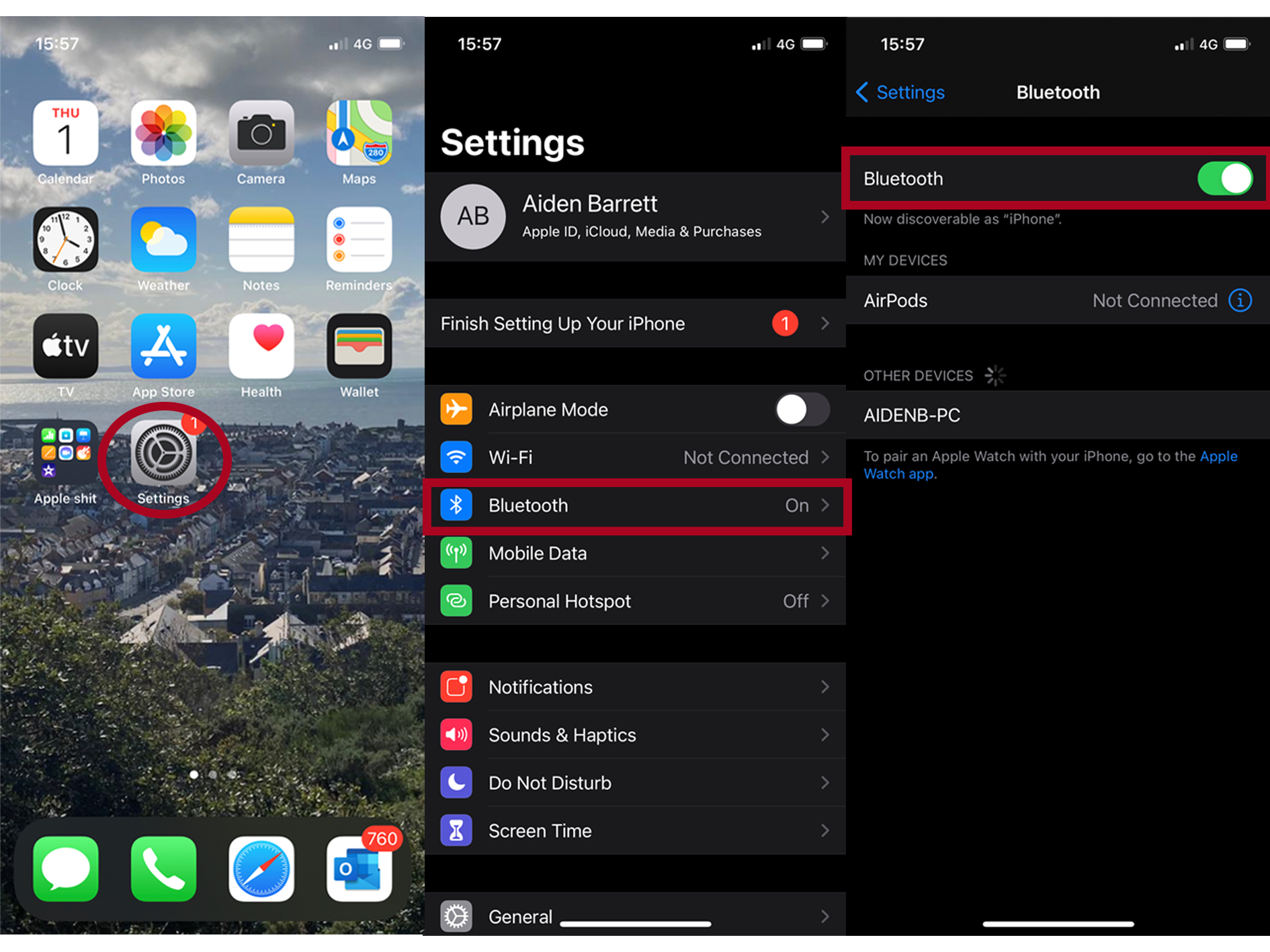
To pair the device to an Apple product you will have to navigate to settings, once in settings you’ll find Bluetooth. Ensure that the slider at the top next to the word Bluetooth is green. Once the slider is green it will start searching for available devices. Once you see the device you wish to connect to, select it and then connect. Once you have connected to a device it will then add a category on your Bluetooth setting called “my devices”. When something has been added to “my devices” it has been remembered, so you will be able to connect with the device whenever it is turned on without having to put it in pairing mode.
Android
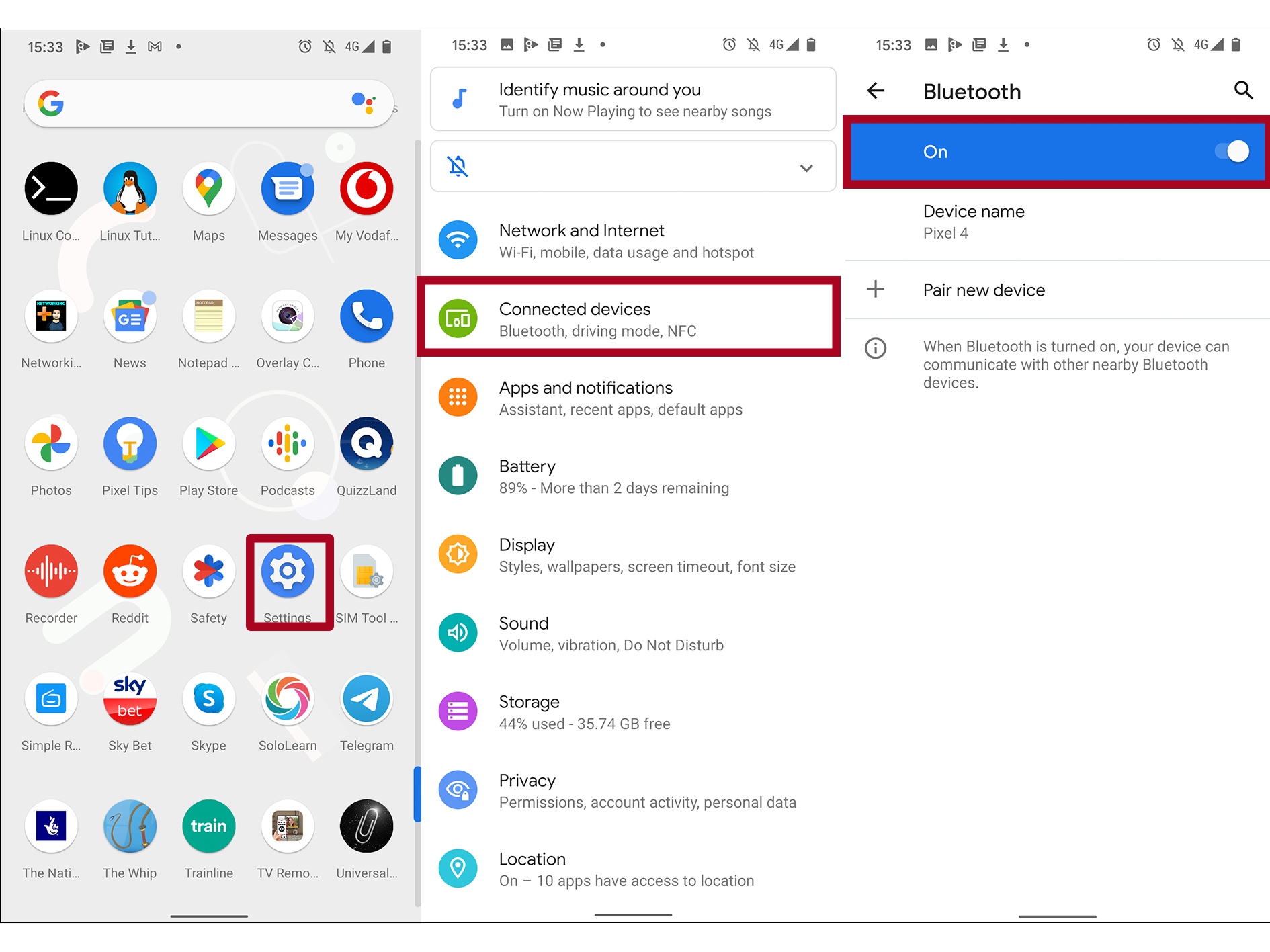
To pair the device to an android product, you will have to navigate to settings. Once you’re there you’ll find Bluetooth. Ensure that Bluetooth has been enabled. Once enabled it will start searching for available devices, once you see the device you wish to connect to select it and then connect. Once you have connected, it will remember the device you have connected to. When something has been added to “my devices” it has been remembered so you will be able to connect with the device whenever it is turned on without having to put it in pairing mode.
Windows
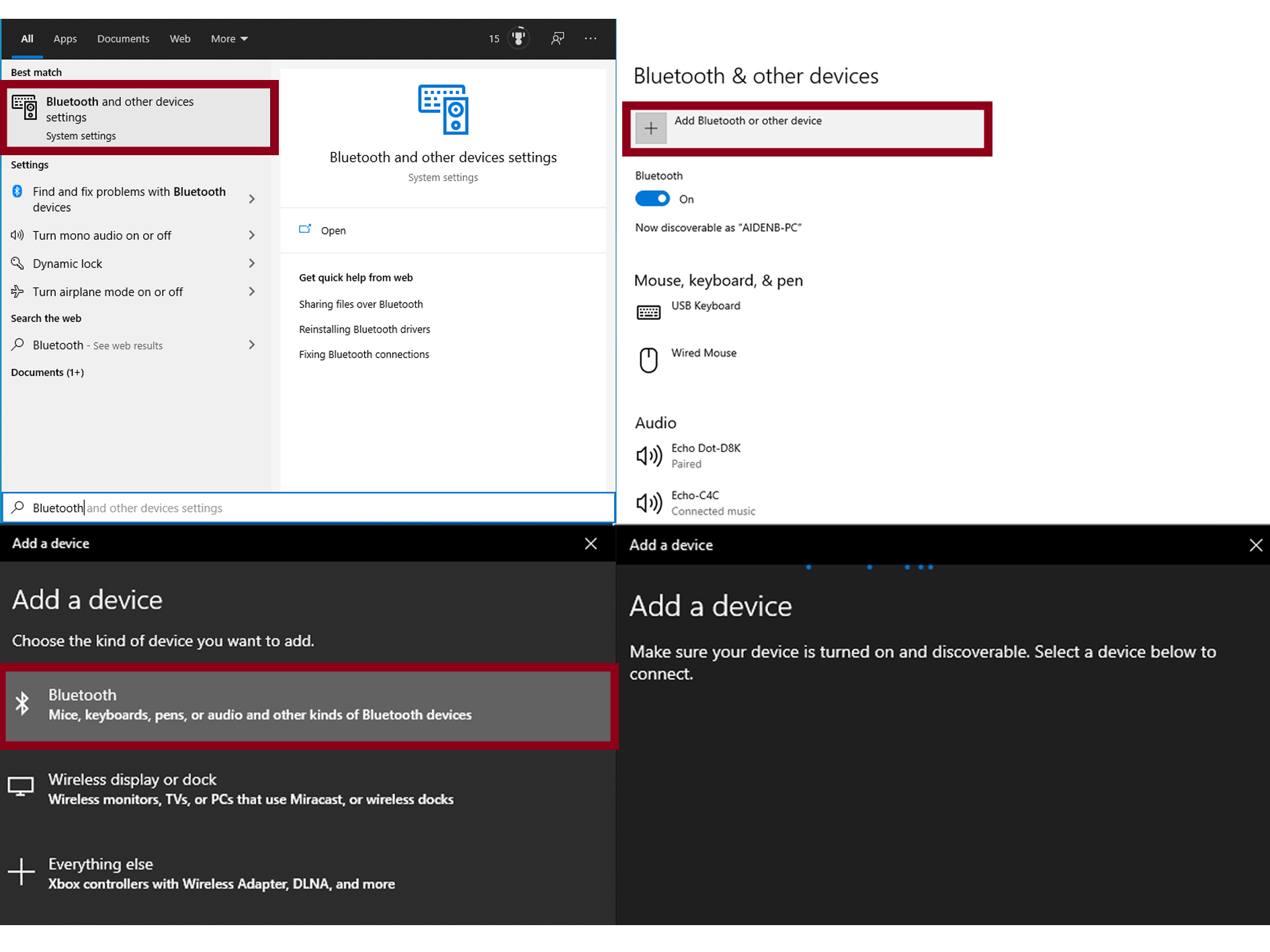
To pair a device to your PC/Laptop you’ll need to first press the Windows button on your keyboard(or navigate to it on your desktop.) You will then type In “Bluetooth” which will then come up with “Bluetooth and other device settings”. Once selected a settings screen will pop up showing currently connected devices. At the top, there should be a slider for turning Bluetooth on and off – ensure that it is turned on. Once it’s turned on click “Add Bluetooth or other device” and select Bluetooth and it will start scanning for devices. Once it’s found the device you wish to connect to, you will be ready to use your device.
All devices with Bluetooth should come with their own set-up instructions within their packaging but if you don’t have any instructions here are some quick Bluetooth tips.
• If the device only has a “power on” button that will usually double up as the Bluetooth pairing button. To start pairing with other devices you will have to hold down the on button usually until an led light starts shining on the device.
• When the device is in pairing mode it will have an LED dot that flashes blue and red, this means that the device is ready to be paired.
• When the device has connected the LED light will then stop flashing and change to a constant blue light.



