

So you are working from home and you need to take a screenshot and you are not sure how. It could be for a multitude of reasons, be it to show tech support because you are having problems or because you need to show someone your work and you want them to see it quick. Being able to screenshot when working from home is a very useful skill as it allows you to help communicate things to your colleagues that wouldn’t usually have a problem showing them in the office. This page is going to go through a few ways that you can take a screenshot as well as a few tips and tricks when doing so.
Print Screen (PRTSC)
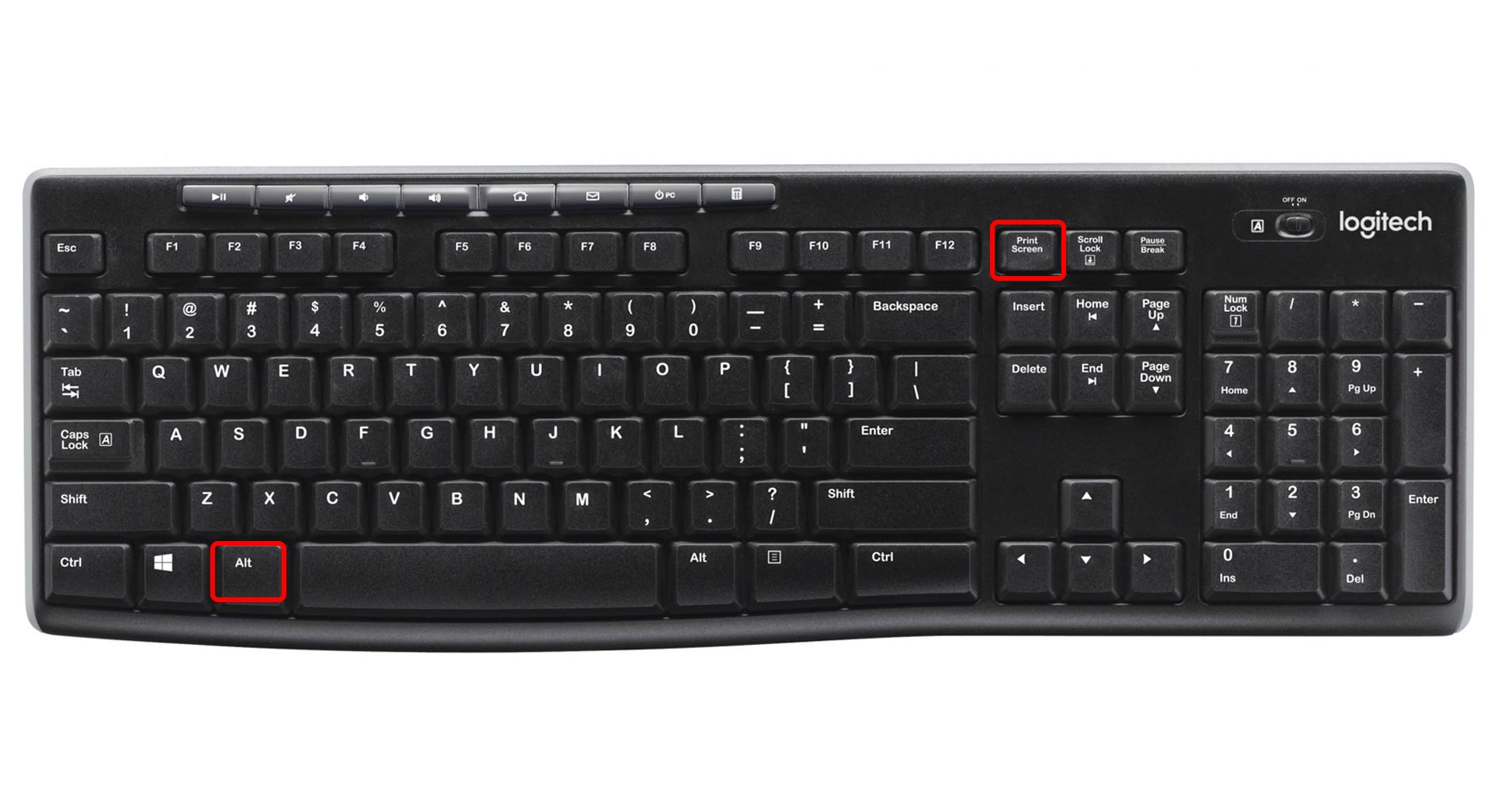
Now if you are using a Windows PC with a generic keyboard then using the Print Screen key may be useful to you. It’s the simplest way of taking a screenshot as all you need to do is press the key on your keyboard and then Paste (CTRL + V) to where ever you want it to go. Now although this is quick and handy to use it does take a screenshot of your entire monitor and if you are using multiple monitors it will grab those too. So it’s wise when doing that to make sure that you don’t have anything personal or unprofessional on your screens as it will be sent to them as well. You can easily go around this by Alt + Print Screen to screenshot the window you have selected.
Snip & Sketch
Now if you are using a Windows PC you should have an app called Snip & Sketch installed on to your PC, if not then here is the link to that. Snip & Sketch is a really useful tool that allows you to take a screenshot of any area that you have selected.
- When you open the app it will give you the option to start a new sketch, once you select new all you have to do is simply click and drag to highlight the area you wish to screenshot.
- Once you have released the photo will go into the app in an editor window where you can make any changes to the image.
- Once you are satisfied with the image you can either copy and paste it to wherever you want the image to go or save the image so you can keep hold of it.
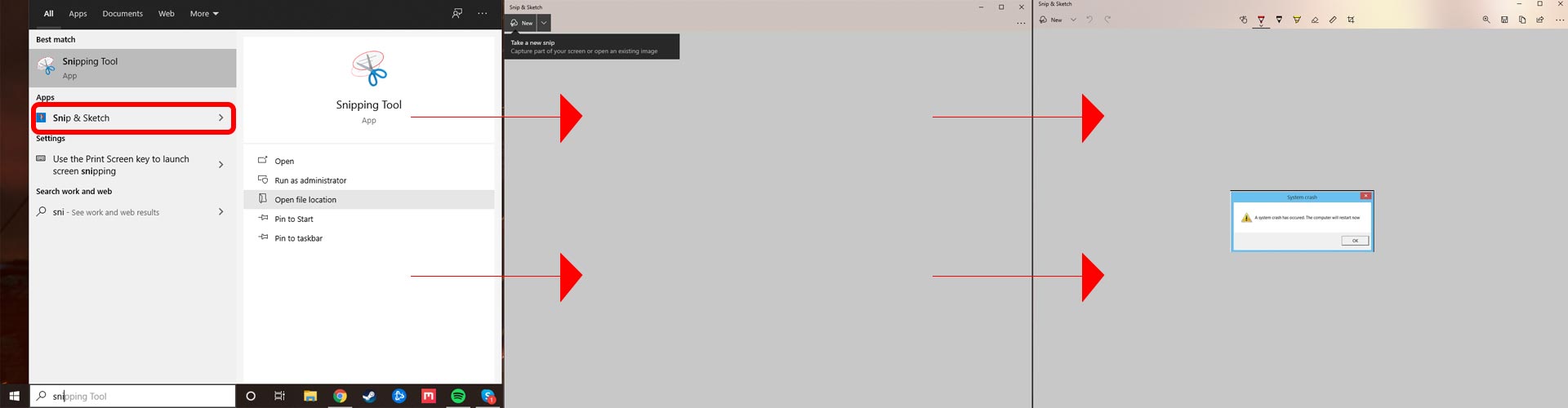
Now if you have the Snip and Sketch tool on windows and you don’t want to edit your image you can use the command Windows + Shift + S and that will bring up the Snip & Sketch tool so you can paste the image to wherever you want without saving or editing.
MAC
Now if you are a mac user we don’t want you to be left out, so here are the few ways you too can screenshot:
- Shift + ⌘ + 3 Will take a screenshot of your entire screen and then save the image to your desktop, saving a copy for you to send wherever.
- Shift + ⌘ + 4 Will allow for you to take a cropped screenshot of where ever you have selected.
- Shift + ⌘ + 5 Shows the screenshotting toolbar so you can cycle through what settings that you need to take your screenshot
Tips & Tricks
Now those are just the Basics as there are many other different ways to take a screenshot but before you go off screenshotting everything you see, here are a few tips and tricks to help you along the way:
-
- If you are screenshotting your entire page ensure that you don’t have any content on your monitors that you wouldn’t want others to see, as you may accidentally send them something they don’t need to see,
- If you are trying to take a screenshot of a moving image or a temporary pop up, use the command, Windows + Shift + S or if you are on MAC Shift + ⌘ + 4 as it will keep your screen stationary when you take the screenshot so you don’t miss what was on the screen.
- If you wish to take multiple screenshots it’s better if you save the images because if you take one screenshot after another it will replace the one taken prior.



